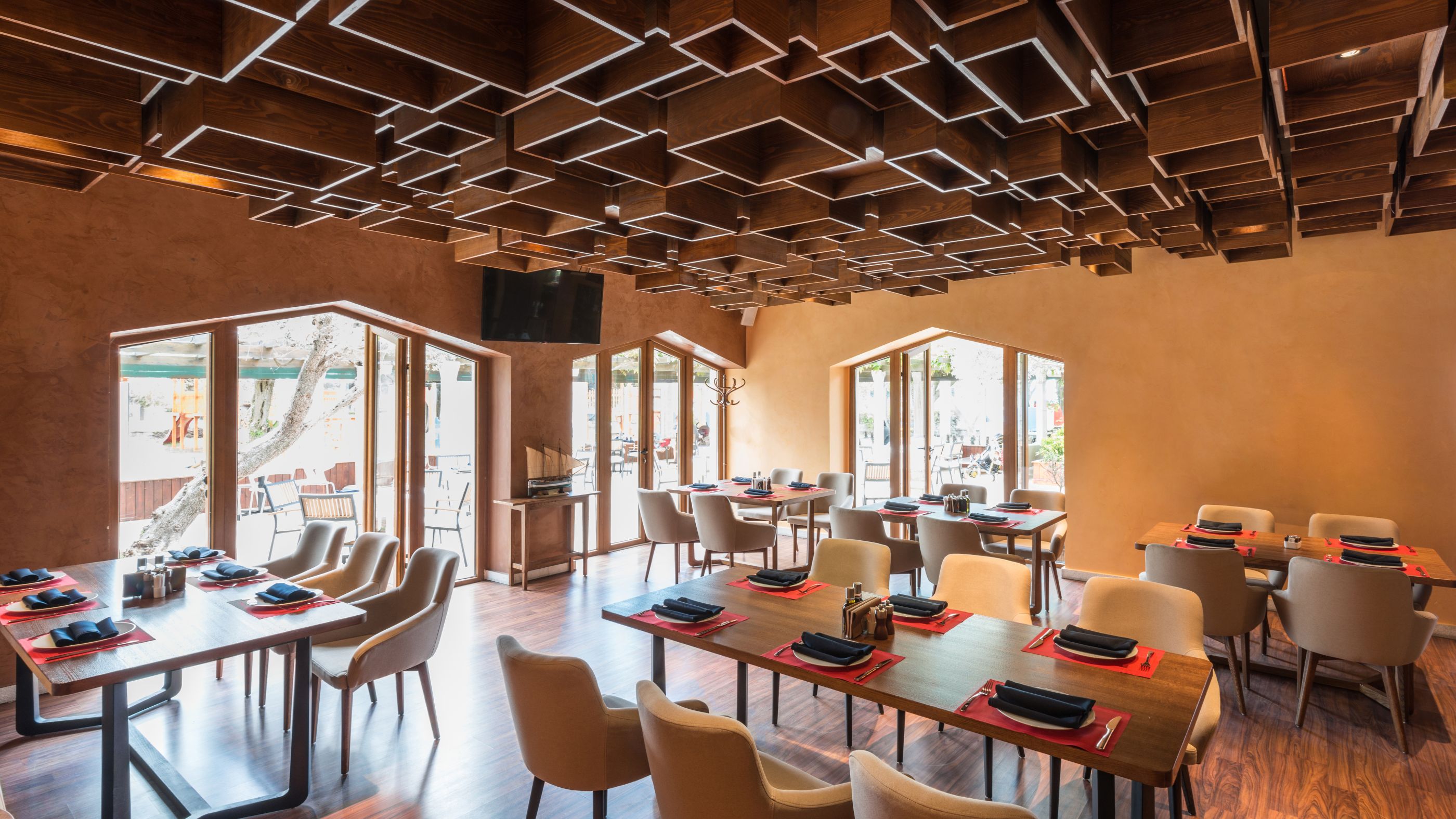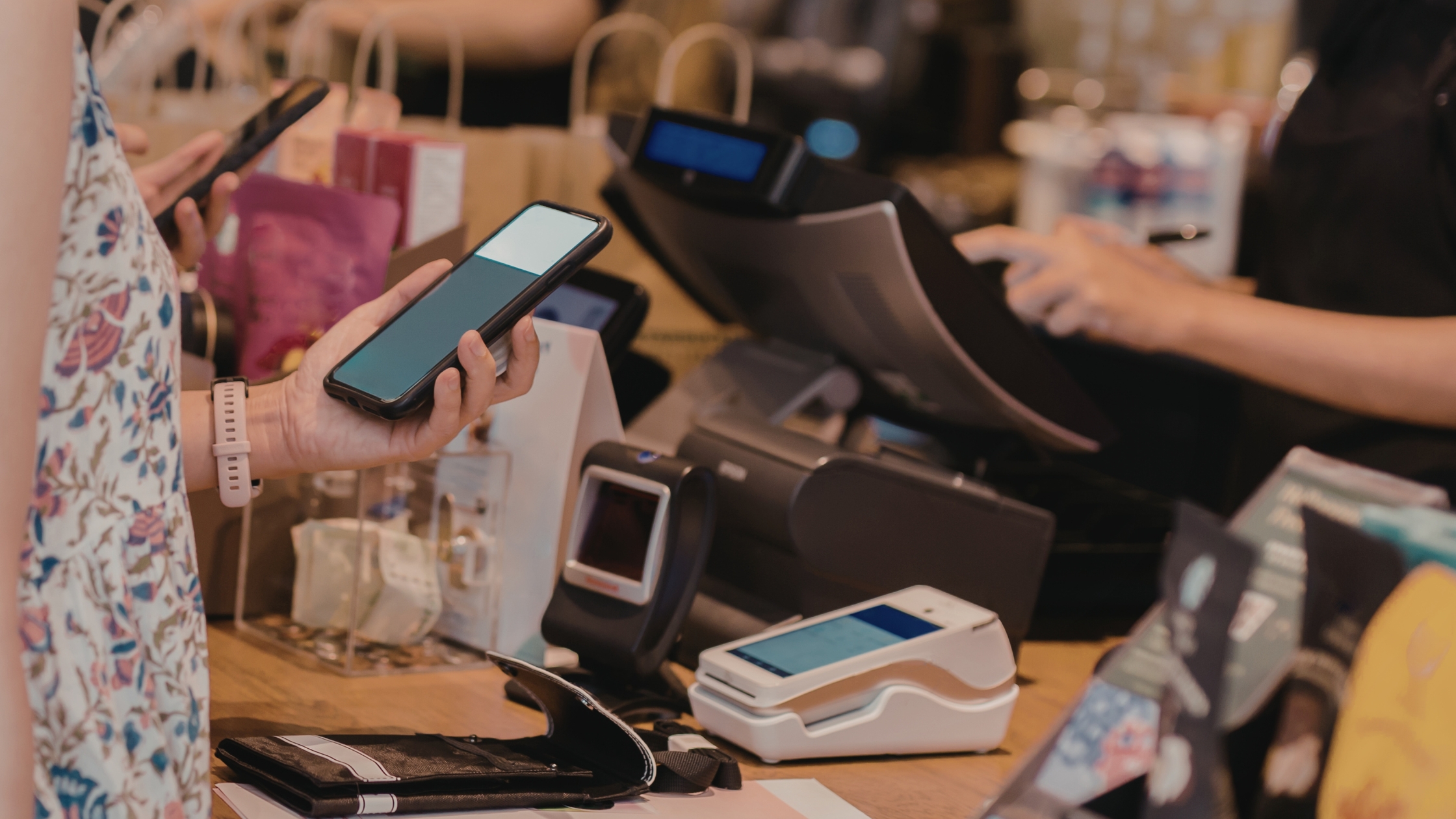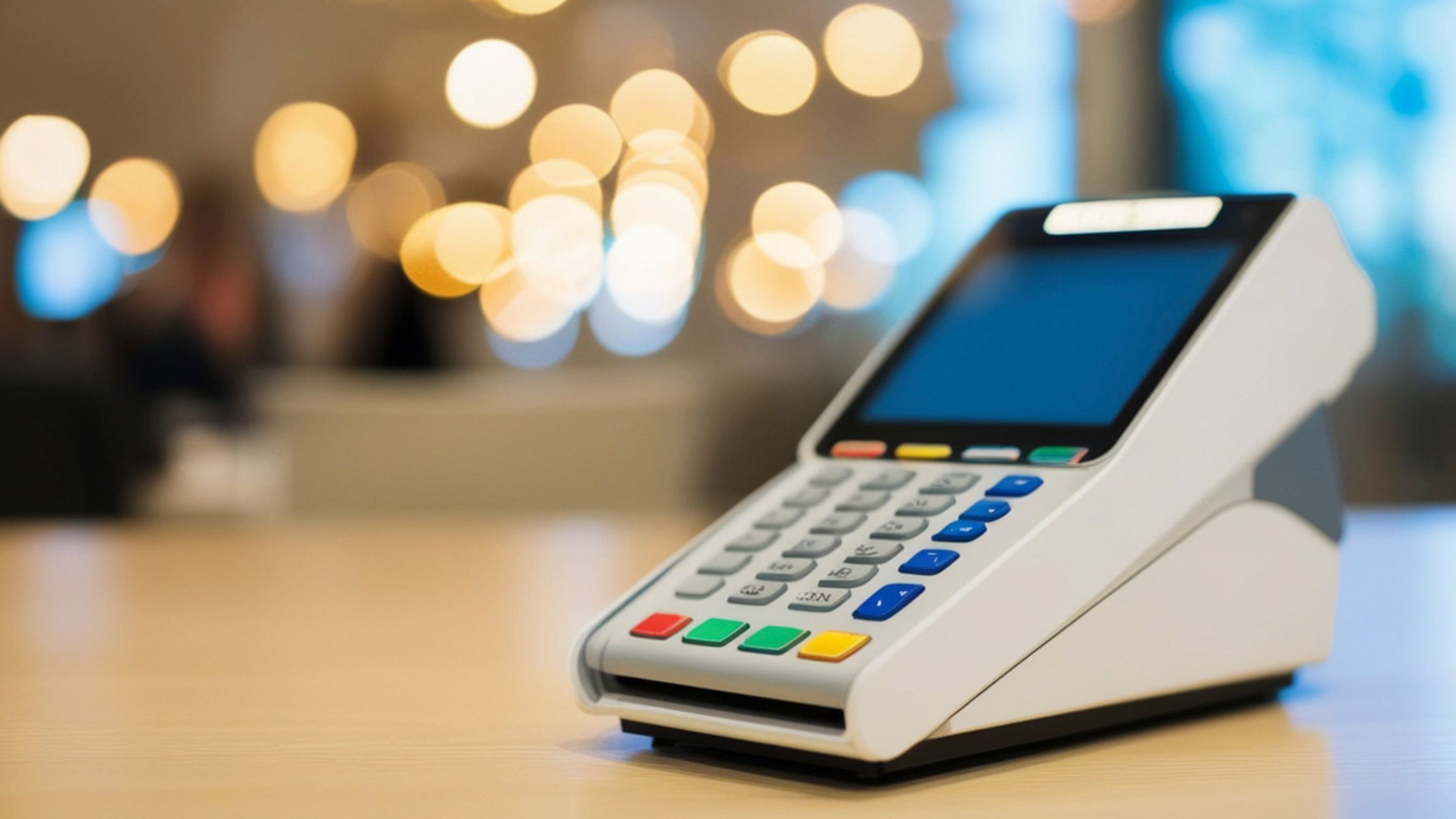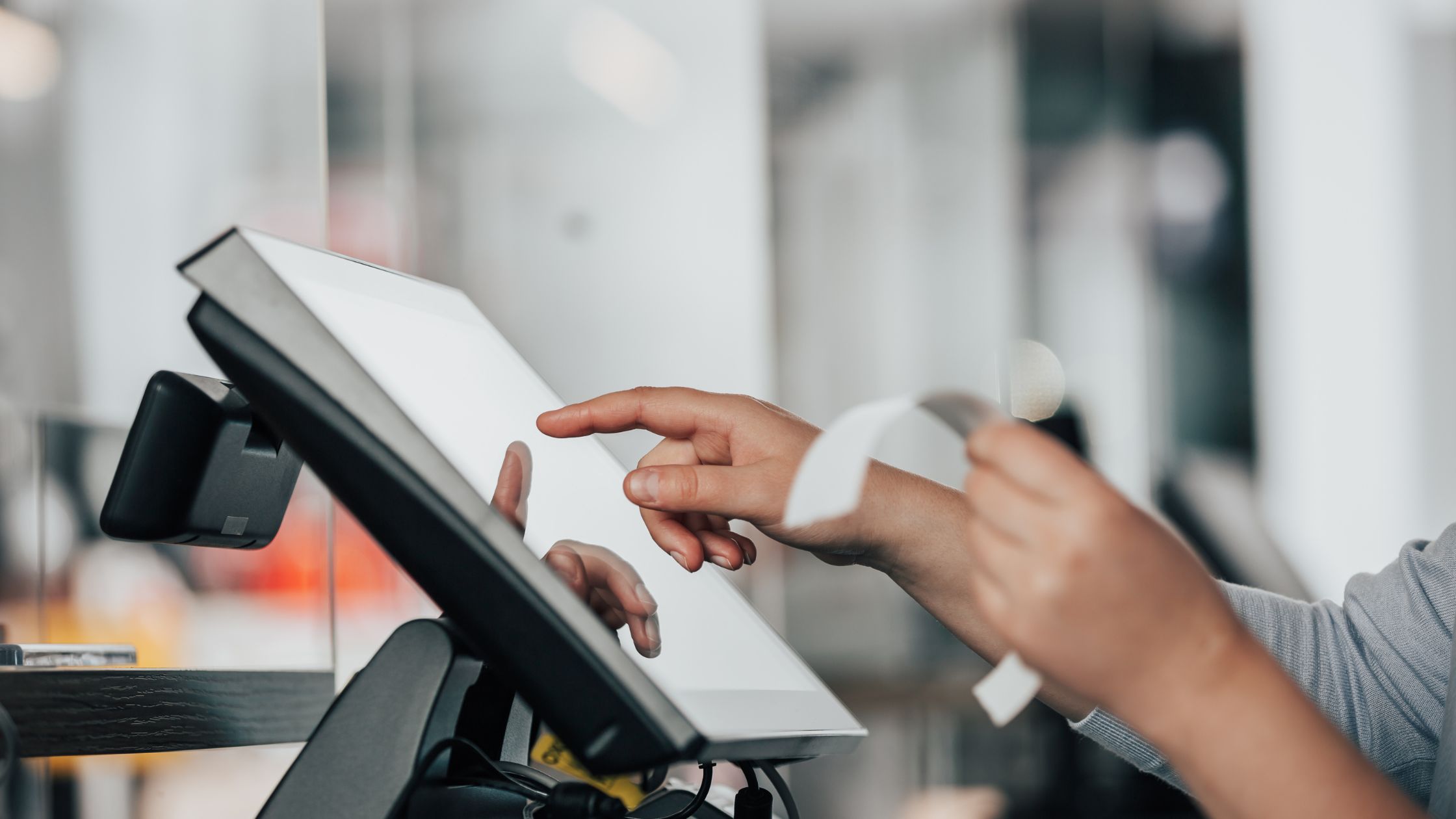
Modern restaurants rarely rely on a single cash counter anymore. Teams move between tables, counters, bars, kitchens, and even outdoor areas. Because of this constant movement, the POS must follow them, not the other way around. A pos with multi-device support lets one system run smoothly across several terminals and devices while it still keeps every order and payment aligned. When restaurants design their workflows around this kind of POS, they reduce friction, shorten waiting times, and gain a clearer view of daily performance. At the same time, they keep control over how each device fits into the bigger picture.
What Multi-Device Support Really Means in POS
Multi-device support means much more than installing the same software on several computers. Instead, it means that a single POS system coordinates many devices under one shared configuration and database.
- A front-counter terminal for walk-in orders and quick payments.
- A bar or drink station terminal for tabs and beverages.
- A device in the dining area for table management and order updates.
- One or more kitchen printers or displays for production.
All these devices connect to the same POS system. Staff still see the same menus, the same tax rules, and the same open tickets, even though they work from different screens.
How Multi-Device POS Stays Synced Across Restaurants
A pos with multi-device support must keep every terminal on the same page. These core principles make sure all devices stay aligned.
A) Single Shared Database
The POS uses one shared database for all restaurant activity. Every terminal reads and writes to the same central data store. This keeps orders, tickets, and reports consistent across every station.
B) Unique Terminal Identification
Each device receives its own terminal ID inside the POS system. The system tracks where each order starts and where it finally closes. This makes it easy to trace actions back to specific stations.
C) Role-Based Device Views
Different devices show interfaces tailored to their main task and role. Sales terminals focus on order entry, while kitchen screens show production. Staff see only what they need, which keeps the workflow simple.
D) Permission-Controlled Access
The POS assigns permissions based on user roles and responsibilities. Servers access ordering tools, while managers access reports and settings. This separation protects sensitive options and prevents accidental changes.
E) Local Network and Offline Resilience
Terminals connect over the local network to the shared database. When the internet fails, devices inside the restaurant still keep working. Restaurants continue taking orders, printing tickets, and closing checks reliably.
Together, these elements keep a multi-device POS stable, predictable, and easy to trust. When every terminal follows the same rules, the restaurant can focus on service instead of fighting with its systems.
Real-World Use Cases of Multi-Device POS in Restaurants
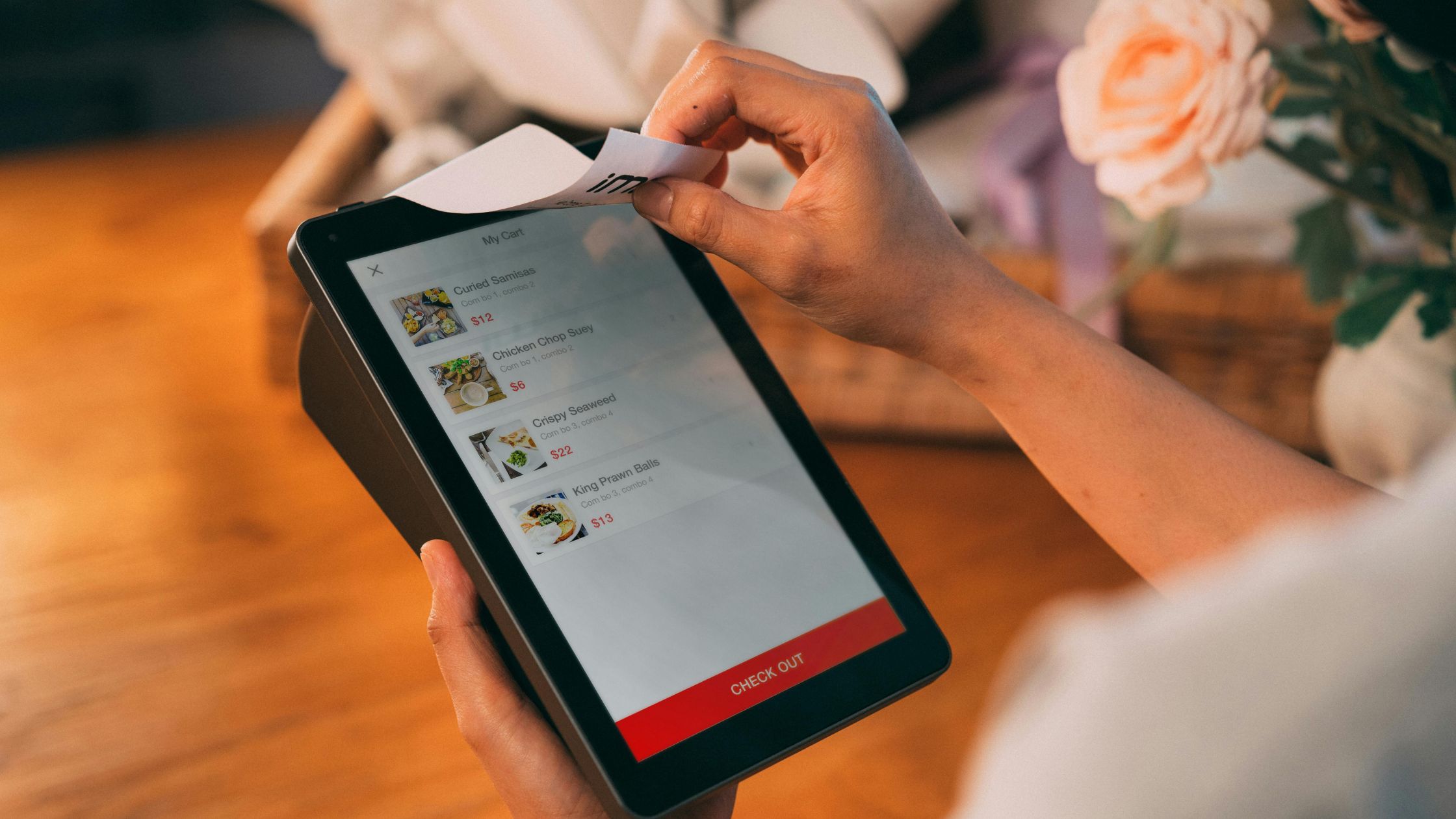
In a busy lunch rush at a quick-service restaurant, a pos with multi-device support lets one terminal handle walk-in orders while another handles online pickups. Staff at the counter take new orders, print receipts, and close payments, while a separate device near the pickup shelf updates the status of prepared orders. The kitchen receives every ticket in sequence, so it never loses track of what to cook next, even though orders come from different screens. During an evening table-service shift, servers use devices on the floor to open tables, send orders, and manage split bills without leaving the guests. At the same time, a bar terminal manages drink orders, and the kitchen display shows tickets grouped by course. Learn more about A Professional Guide to Self-Hosted Restaurant POS Software.
Best Practices for Implementing Multi-Device POS
A good system needs a clear plan. These simple practices help multi-device rollouts run smoothly.
i. Map the Floor First: Sketch the layout and mark where staff meet guests, handle food, and take payments.
ii. Set Terminal IDs and Users: Give each device a unique name or number and have staff log in with their own credentials.
iii. Standardize Key Hardware: Use the same models for core items like receipt printers, cash drawers, and main screen sizes.
iv. Test Realistic and Stress Scenarios: Before launch, simulate rushes, split bills, discounts, voids, and network drops.
Because each role touches different parts of the POS, role-specific practice keeps the system smooth once the restaurant goes live.
Conclusion
A pos with multi-device support helps restaurants align technology with real-life work on the floor. Instead of crowding around one terminal, teams use several devices while the system still keeps data unified and accurate. Staff move more naturally, guests wait less, and managers see performance more clearly. When restaurants plan multi-device setups with a focus on workflows, hardware placement, and data consistency, they build flexible operations that adapt as menus, service styles, and customer expectations change. Companies like Floreant POS study these patterns, help refine processes, and support teams as they design POS environments that stay practical, stable, and easy to manage over time.
FAQs
1. What does “multi-device support” mean in a POS system?
It means one POS runs on several terminals and devices in the same restaurant. All devices share one database, one menu setup, and one live set of orders and reports.
2. How does a pos with multi-device support help staff every day?
Staff use the nearest suitable screen for their task. Servers send orders from the dining area, cashiers take payments at the counter, and kitchens read tickets on their own devices, which cuts walking, re-entry, and mistakes.
3. Does a multi-device POS always need an internet connection?
No. Many systems run on a local network and keep working when the internet drops by storing data locally and syncing inside the building. External communication resumes when the connection returns.
4. What should a restaurant consider before adding more POS devices?
Review the floor plan, service style, and staffing. Assign tasks to devices, select appropriate hardware, define identities, and test under realistic conditions to ensure smooth integration into the workflow.