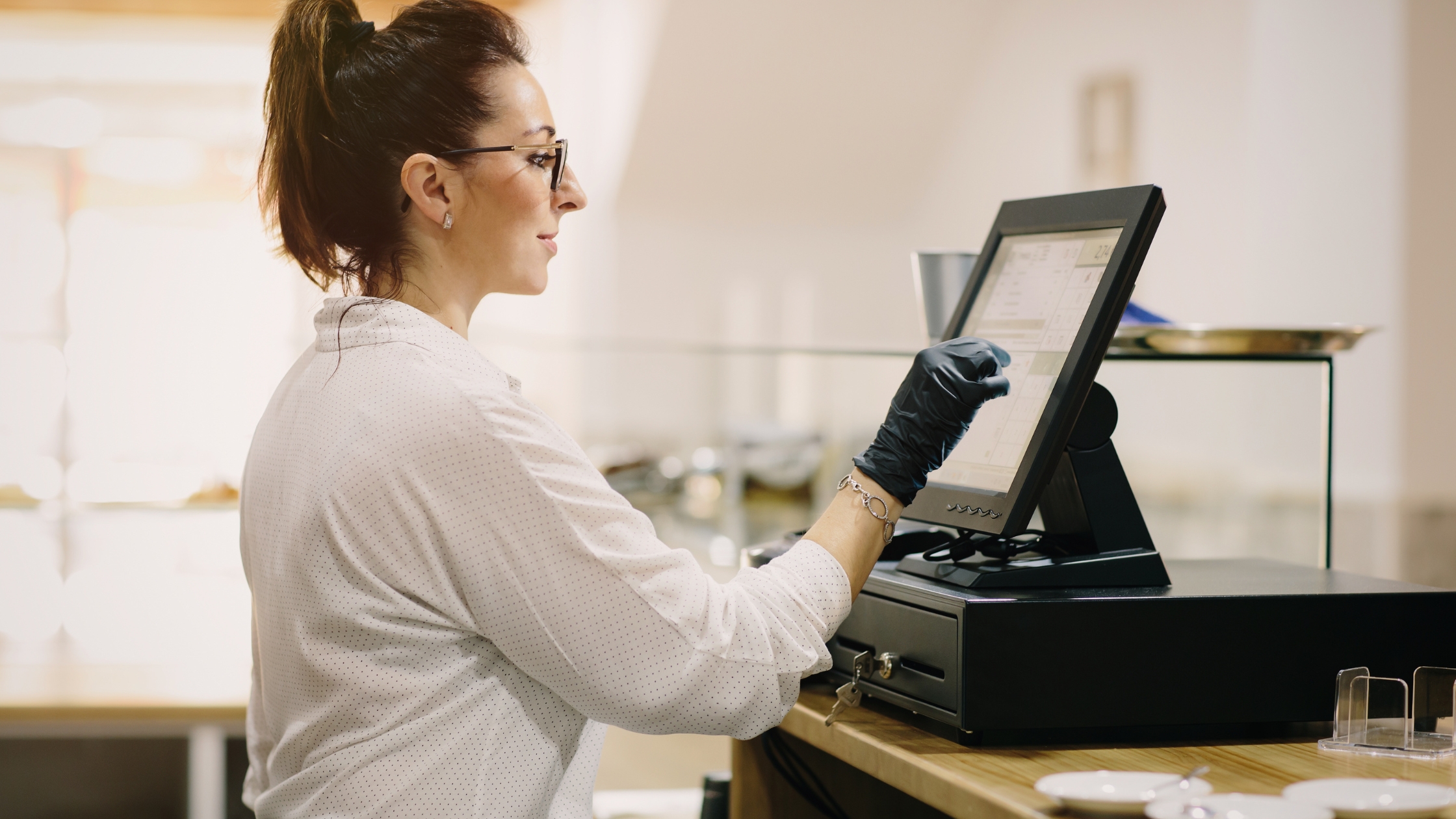
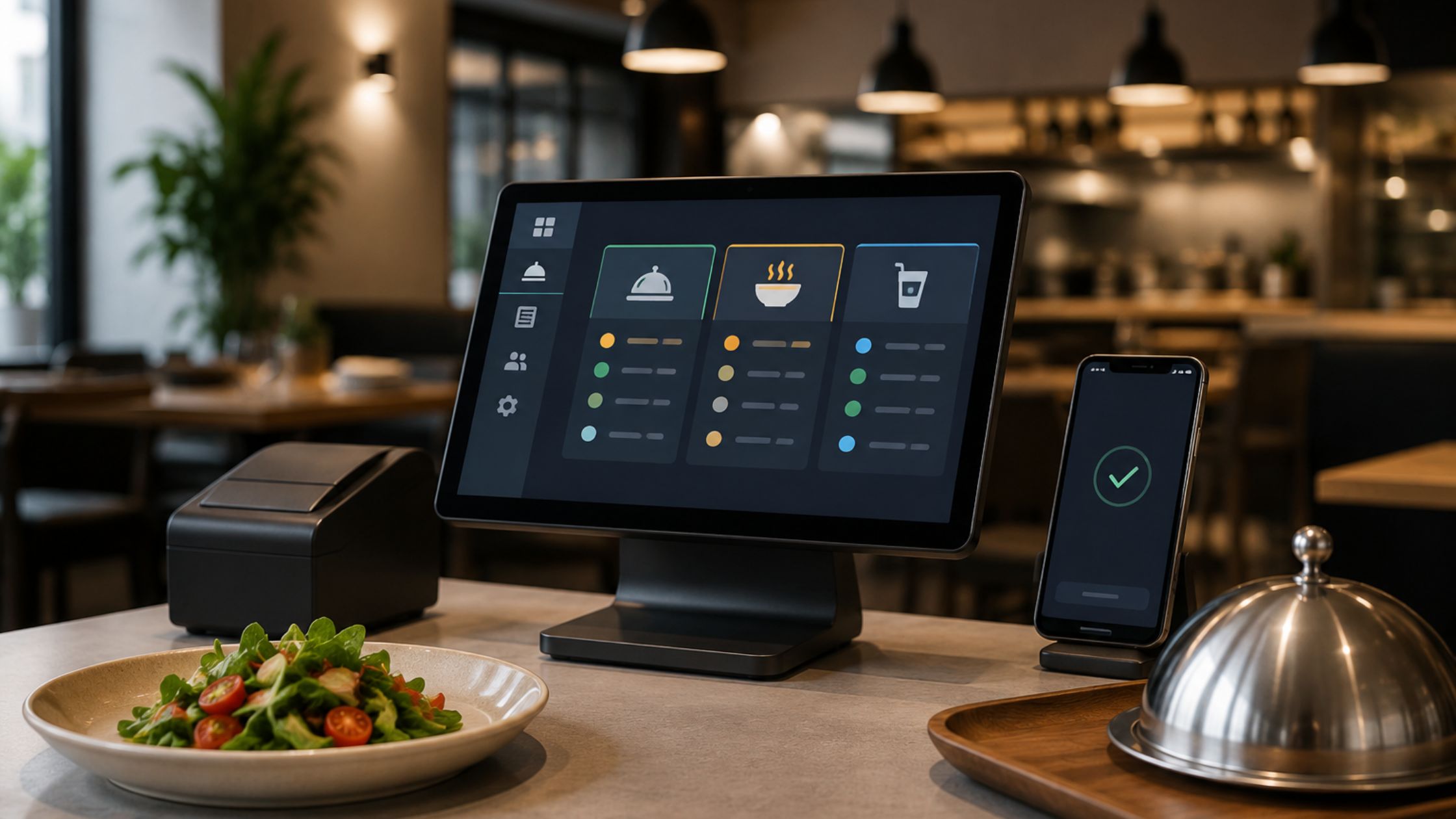
Restaurants depend on hardware that behaves the same way every shift. However, many teams still face device failures after installation because a printer, drawer, or touchscreen behaves differently inside the POS workflow than it does in a basic system test. Moreover, staff usually feel the damage during peak hours, so even small glitches can quickly slow service and raise error rates. Therefore, you should troubleshoot POS hardware as a complete workflow, not as isolated parts. This guide explains pos hardware compatibility issues with practical steps that fit real restaurant operations. Additionally, every section focuses on one distinct problem area, so you can diagnose faster and avoid repeating the same mistake.

Build a Simple Hardware Map Before Troubleshooting
You fix problems faster when you document the setup first. Therefore, you should create a one-page hardware map before you change drivers, ports, or settings. Additionally, you reduce back-and-forth because you can see the full setup on one page instead of relying on memory.
- Terminal count and the main admin station.
- Receipt printer model and connection type.
- Kitchen printer model and routing purpose.
- Cash drawer connection path and cable type.
- Network layout, including printer IP addresses
- Station roles, such as cashier, server, and manager.
Moreover, this map prevents random changes that create new failures, and it helps you repeat a stable setup on every new terminal. Furthermore, it speeds up support handoffs because anyone can understand the system without asking ten questions.
Core POS Hardware Compatibility Failure Areas
POS hardware fails most often when small configuration gaps stack across devices and stations. Therefore, you should classify issues early, so troubleshooting stays fast and predictable.
A) OS and Hardware Mismatch
Different OS versions handle drivers differently, which changes device behavior across stations. Moreover, older systems may not support newer updates and security patches. As a result, devices connect but fail during real POS workflows.
B) Driver and Firmware Conflicts
Outdated drivers often clash with device commands, so peripherals work inconsistently under load. Additionally, firmware mismatches can ignore triggers even when installs look correct. Consequently, printers and drawers fail without clear error messages.
C) Port and Network Setup Errors
Wrong port assignments send POS output to the wrong device or to no device at all. Furthermore, COM conflicts or duplicate IPs create random disconnects during service. Therefore, stable mapping and priority rules protect daily reliability.
D) Printer Compatibility Issues
Printers use different command languages, which affect how the POS prints tickets and receipts. Moreover, routing mistakes can send jobs to the wrong station or block printing entirely. As a result, kitchens miss orders and lines move more slowly.
E) Touch and Display Problems
Unsupported touch controllers cause missed taps, delays, or wrong selections during ordering. Additionally, scaling and resolution issues can shift button alignment inside the interface. Consequently, staff speed drops and entry errors rise quickly.
These categories help you isolate the real failure layer instead of guessing across many devices. Therefore, you can fix the root cause faster and prevent the same issue from returning.
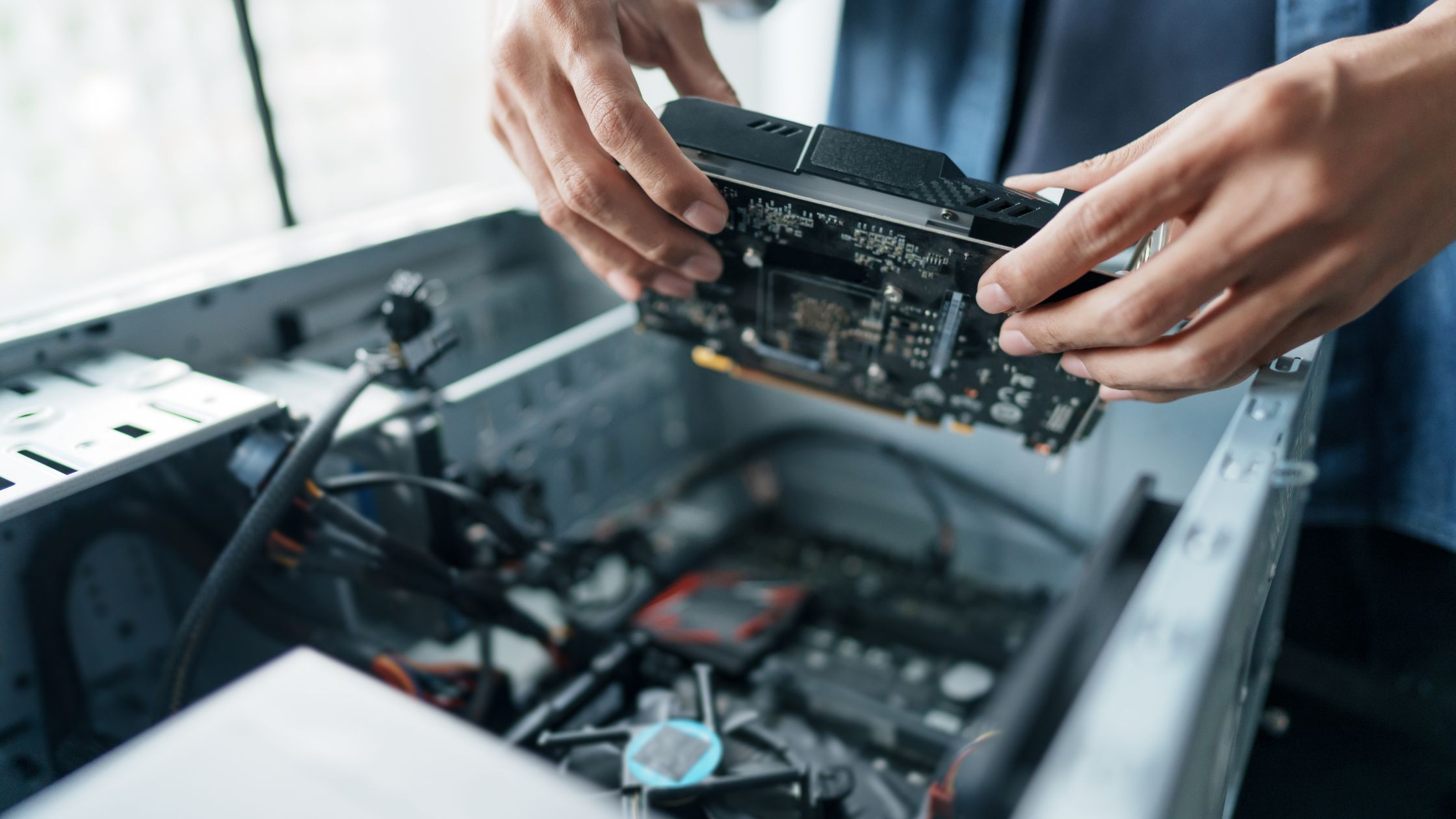
Reduce Compatibility Issues With Better Configuration
You don’t need expensive gear—you need a clear setup method and consistent configuration, like:
- Match Hardware To Your Setup: Choose terminals, printers, and scanners compatible with your OS to avoid POS hardware issues.
- Set Printers In Back Office: Configure printers first, then map them to stations and routing. Consequently, tickets print correctly and stay predictable.
- Fix Cash Drawer Triggers: Verify the connection path and use the correct trigger format. Moreover, checkout stays smooth and consistent.
- Plan Before Adding Terminals: Choose the right database mode before you scale stations. As a result, terminals stay synced and stable.
- Stress-Test Before Go-Live: Run fast orders, printing, and drawer opens under pressure. Then you find pos hardware compatibility issues early.
This routine keeps hardware reliable, so service stays fast during rush hours. Learn more about Restaurant POS in 2026.
Simple Habits That Prevent Repeat Failures
Small, consistent routines reduce downtime because they stop the same mistakes from repeating.
- Standardize Models — Use matching devices to reduce conflicts and simplify support.
- Label Everything — Label cables and ports to avoid guesswork under pressure.
- Quick Checks Sheet — Keep a one-page checklist for fast, consistent first steps.
- Spare Kit Ready — Stock key spares so fixes happen instantly during downtime.
- Document Changes — Record every change so problems don’t return unexpectedly.
When you follow these habits daily, your POS stays stable, and your service stays smooth.
Conclusion
POS hardware problems rarely come from one “bad device.” Instead, they appear when drivers, ports, routing, and station settings clash under real service speed. Therefore, when you document your hardware map, classify failure areas early, and apply a consistent configuration routine, you prevent downtime before it hits your guests. Moreover, when your team standardizes devices, labels everything, and keeps a simple spare kit ready, you reduce repeat breakdowns and keep every shift predictable. If you want to turn this exact method into a repeatable setup and troubleshooting system for your POS operations, Floreant POS can help you implement a clear workflow, stable configuration standards, and practical documentation habits that keep service fast during rush hours.
FAQs
1) Why does a printer test fine but fail during POS checkout?
A test print validates basic output, yet checkout printing depends on driver behavior, station mapping, and workflow triggers, so the POS exposes mismatches that a test page misses.
2) What usually causes kitchen tickets to route incorrectly?
Station profiles and routing rules usually cause wrong routing, so you should simplify printer groups and verify each terminal’s routing configuration.
3) Why does a cash drawer open sometimes and fail other times?
The receipt printer often triggers the drawer, so cable wiring, drawer port type, and command timing can cause intermittent failures during payment.
4) What is the safest way to add a second or third terminal?
You should clone a proven configuration, standardize drivers, verify routing per station, and run end-to-end sale tests, because expansion exposes hidden configuration differences.